Participant Record
From the Census screen, you can access the individual participant's data by selecting their name from the Participant Record dropdown or by clicking their name below the census grid in the "Active/Inactive Employees not on current year census".

You will be taken to the "Participant Menu" screen where you can access the View History and Vesting Override windows, as well as the Participant Data section.
View History

Clicking “View History” will take you to the Participant History grids. The Eligibility, Vesting, and Benefit History grids all work in a similar manner. The grid shows the years of service and hours of service earned for each computation period year in the system as well as status change dates. The following example will illustrate how these grids operate:
A sample Eligibility history link is shown below for the 2024 testing year. The first field shown is the "Comp Period year End" which shows the computation period year end for which the status was calculated.
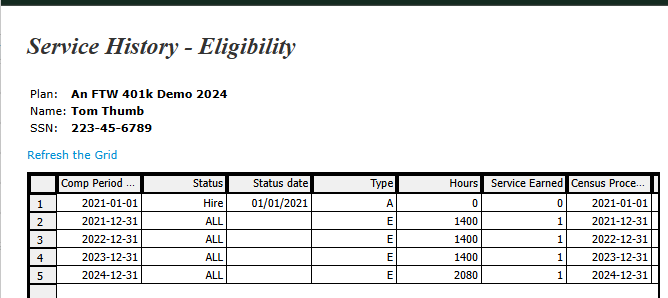
The next three columns taken together show the status, status date and type of record shown. The field "Type" indicates the type of status. There are two main categories of status types:
- A: General status change with a status of hire or term. "A" status types will not have corresponding hours of service.
- E, V or B: "E" = Eligibility; "V" = Vesting; and "B" = Benefit. These status types will have corresponding Statuses to indicate what type of contribution they pertain to ("ED" - elective deferrals, "MT" - Matching, "NE" - nonelective, or "ALL" - all contribution types).
The Hours column typically displays the hours from the census grid. The Service Earned column will indicate the years of service earned for the computation period.
The Compensation and Contribution/Distribution History grids include the Compensation History from previously uploaded census files in the Statutory and Nonelective Testing fields.

The Contribution/Distribution History grid has the same fields as the Compensation History grid but the contribution and distribution data is based on posted transactions in the Transactions module.
Vesting Override
The Vesting Override link allows you to override the source vesting percentage for a participant. Once the vesting percentage is overridden, the software will no longer calculate the vesting percentage for that employee.
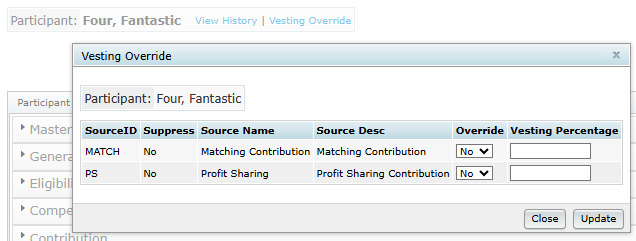
Unless you are making an employee 100% vested, we recommend doing a years of service override using one of the *ftw grids in the Other Import/Export/Report menu instead of overriding vesting percentage.
