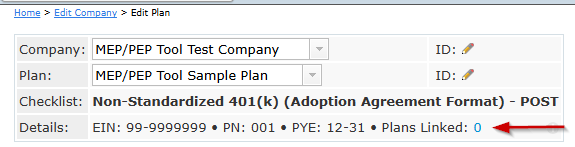
1. To link your Adopting Employer(s), click on the "0" next to "Plans Linked" at the top of the Edit Plan page in the "Details" box. The number of plans linked will initially be "0". As you add Adopting Employers, this number will increase to reflect the number of Adopting Employers.
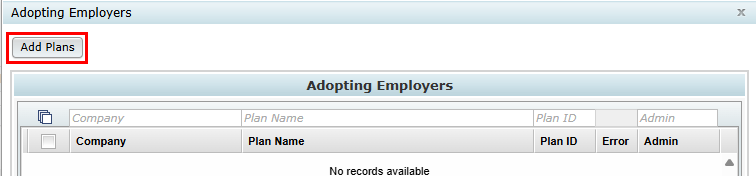
2. On the "Adopting Employers" window is where you can add your Adopting Employers. Click on the "Add Plans" button near the top of the menu. The software will open a window displaying a list of all plans on your account that match the checklist type of the Master Plan.
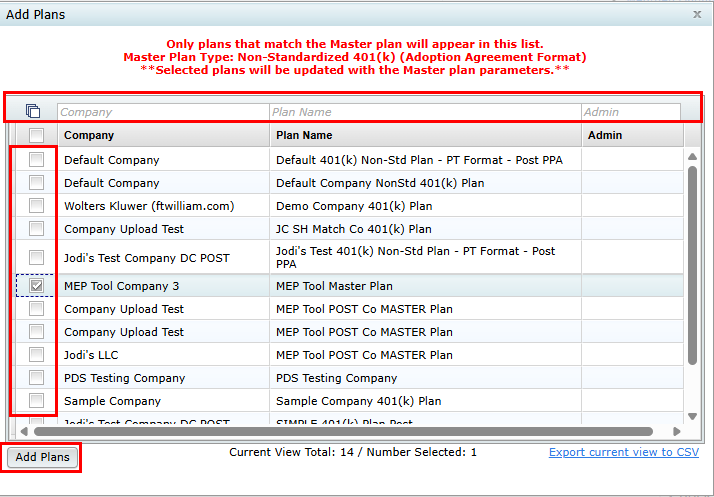
3. Filters at the top of the window may be utilized to narrow the list of plans. You can choose to select plans individually or by checking the select all box. Once you have selected your desired plans, click on the "Add Plans" button.
4. A confirmation window will appear letting you know that your selected plans will be updated with the Master Plan. Click "Yes" to continue.
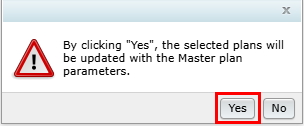
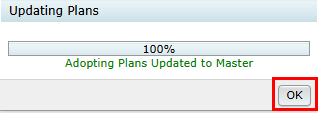
5. A progress bar window will appear to indicate you are ready to proceed. Click on the "Ok" button.
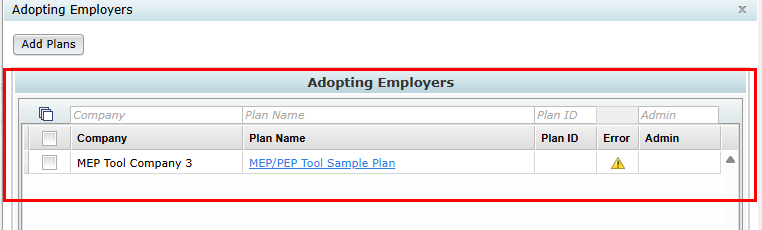
6. After plan(s) have been added, the number of plans linked will increase at the top of the page in the "Details" box.
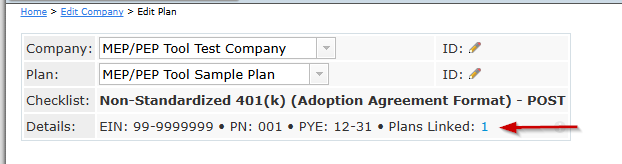
7. To view the list of Adopting Employer(s), click on the number next to "Plans Linked".