Make sure that all Master Plan and Adopting Employer plans have been added to your account. To add these plans, follow the same steps used to add any other plan to the system.
You can add your companies and plans using the standard Add Company and Add Plan features on the Home page, or the WK drop-down menu.
If your Master Plan has already established and you have a new Adopting Employer plan, you can either add a new plan to the Adopting Employer company or clone the existing Master Plan to the Adopting Employer company. For assistance cloning a plan, see "Clone Plan Feature" under Edit Plan in the Document User Guide.
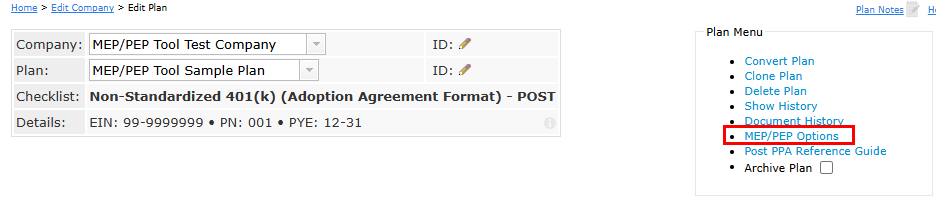
From the "Edit Plan" page of the plan you wish to designate as the Master Plan, click on the "MEP/PEP Options" link located under the "Plan Menu".
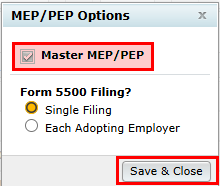
Check the box "Master MEP/PEP" to designate this plan as the Master Plan. Then, choose the applicable Form 5500 filing: single filing or a filing for each Adopting Employer. Once you have made your selection, click on the "Save & Close" button.
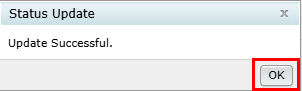
A pop-up window of the "Status Update" will generate. Click "Ok".
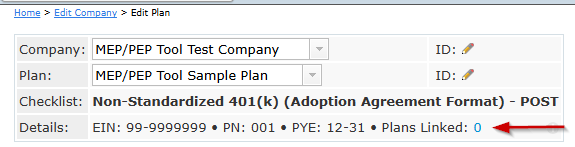
1. To link your Adopting Employer(s), click on the "0" next to "Plans Linked" at the top of the Edit Plan page in the "Details" box. The number of plans linked will initially be "0". As you add Adopting Employers, this number will increase to reflect the number of Adopting Employers.
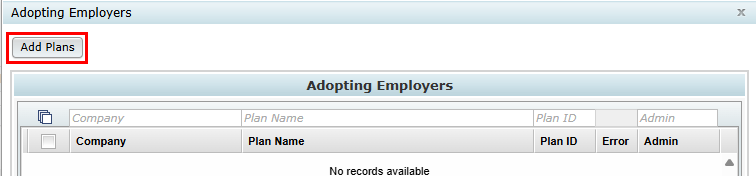
2. On the "Adopting Employers" window is where you can add your Adopting Employers. Click on the "Add Plans" button near the top of the menu. The software will open a window displaying a list of all plans on your account that match the checklist type of the Master Plan.
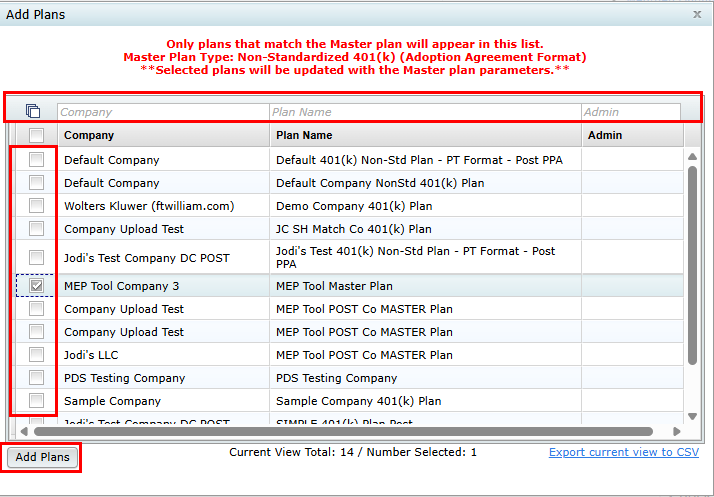
3. Filters at the top of the window may be utilized to narrow the list of plans. You can choose to select plans individually or by checking the select all box. Once you have selected your desired plans, click on the "Add Plans" button.
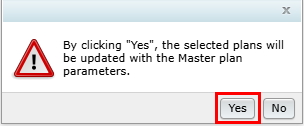
4. A confirmation window will appear letting you know that your selected plans will be updated with the Master Plan. Click "Yes" to continue.
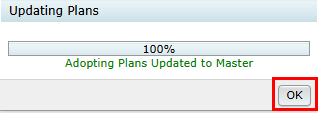
5. A progress bar window will appear to indicate you are ready to proceed. Click on the "Ok" button.
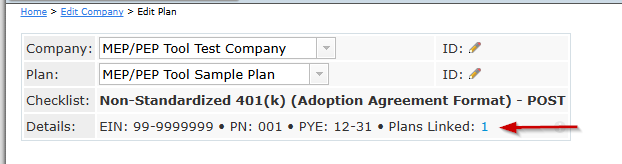
6. After plan(s) have been added, the number of plans linked will increase at the top of the page in the "Details" box.
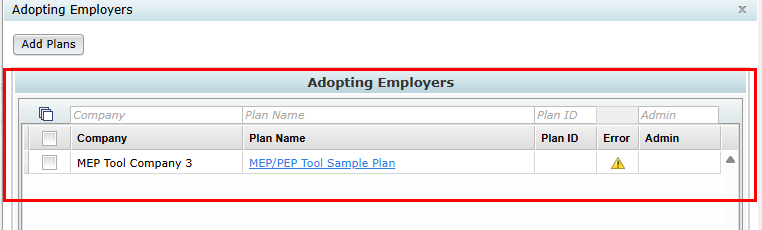
7. To view the list of Adopting Employer(s), click on the number next to "Plans Linked".
In the Master Plan, the lock/unlock feature in the checklist allows you to indicate which parameters an adopting employer may have that are different than what the Master Plan has selected. There are certain parameters which are not permitted to be unlocked as those can only apply to the Master Plan. There are three types of padlocks:
1. Gray closed padlocks - these indicate parameters which only apply to the Master Plan and cannot be different for an Adopting Employer.
2. Green closed padlocks - these indicate parameters that are locked. The selected options in the Master Plan checklist with green padlocks will apply to the linked Adopting Employer(s).
3. Yellow open padlocks - these indicate parameters that are unlocked. Allowing the linked Adopting Employer to make a different selection for that parameter.

At the top of the checklist, you have the option to "Lock All" or "Unlock All" parameters in the Master Plan.

To select specific parameters to lock or unlock, click on the padlock next to the checklist question. Clicking on a closed green padlock will change it to a yellow open padlock, allowing the linked Adopting Employer to have that parameter selected different than the Master Plan.
After modifying the parameters or updating the padlocks in the Master Plan, a message will appear at the top of the Master Plan checklist indicating that the Adopting Employer plans are not in sync with the Master Plan. To sync your plans, click on the "Update Linked" button at the top of the checklist. This will sync the Master Plan parameters to the linked Adopting Employer(s) checklist. Selected parameters that are locked in the Master Plan will flow over to the linked Adopting Employer(s) checklist.

A warning window will appear verifying you want to continue. Click "Yes".

A progress bar will appear, followed by "Updating Plans" status window. Click "Ok".

To access your linked Adopting Employer(s) Edit Plan checklist, click on the number next to "Plans Linked" at the top of the page by "Details".

On the Adopting Employer page, you can select the adopting employer you want to update by clicking on the Plan Name next to the company. This will take you to the Edit Plan page of that Adopting Employer.

You can now update parameters that have open padlocks.

Once you have updated your Adopting Employer's parameters that are different than the Master Plan, and have run the Edit Checks, you are ready to generate your Adopting Employer's Joinder Agreement and supporting documents. Please refer to "Generate Adopting Employer Joinder Agreement, Supporting Forms/Notices and Master Plan Documents" in this guide for those steps.
To print the Joinder Agreement and any supporting forms/notices for your Adopting Employer(s), go to the print Plan Document page of your Adopting Employer.
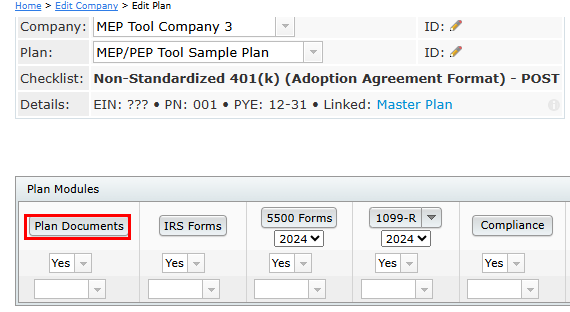
1. From the Edit Plan page, click on the "Plan Documents" button.
2. Select the Joinder Agreement and any supporting forms/notices that apply to the provisions of your Adopting Employer.
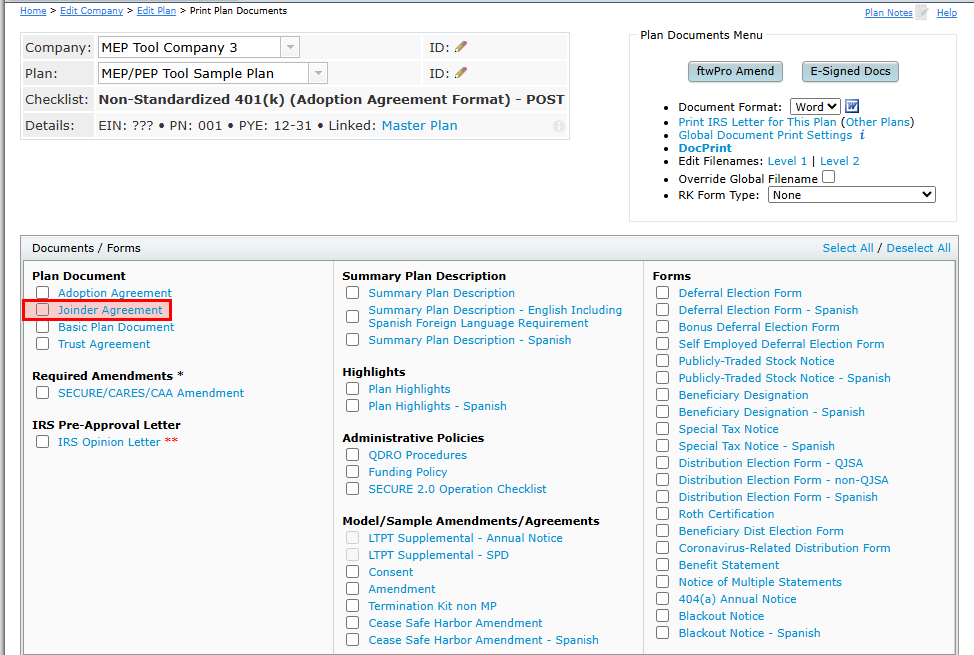
The Joinder Agreement document includes two Consent documents (if required by the companies). One for the Master Plan Sponsor, and one for the Adopting Employer to sign. Only the Adopting Employer is required to sign the Joinder Agreement page.
If using the adoption agreement format document/checklist, the Joinder Agreement will have an Addendum of the options applicable to the Adopting Employer.

If using the individually designed format document/checklist, there will not be an Addendum to the Joinder Agreement. To detail the parameters that are different than the Master Plan, you will want to update Section J.26 in the document checklist of your Adopting Employer.

Text entered here will populate in the Joinder Agreement as follows:
AGREED FURTHER, that, if applicable the following provisions will apply to the Adopting Employers in lieu of the provisions contained in the Adoption Agreement: [text from J.26].
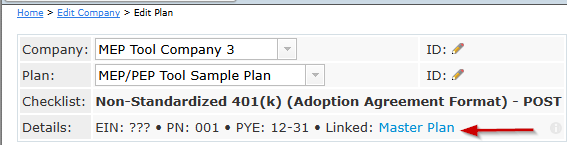
To navigate back to the Master Plan or to a different Adopting Employer, click on the "Master Plan" link at the top in the "Details" row.
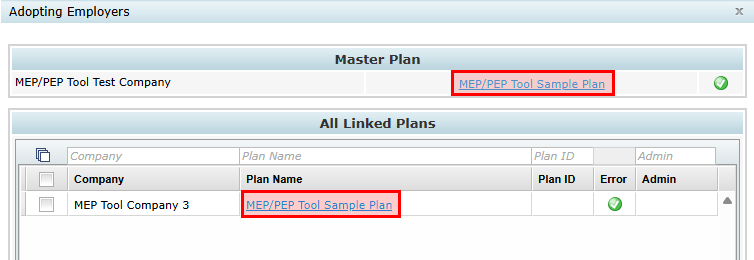
Click on the plan under "Master Plan" to be directed back to the Master Plan's Edit Plan page. Click on the plan name under "All Linked Plans" to be directed to that Adopting Employer's Edit Plan page.
To print documents for your Master Plan, go to the print Plan Document page of your Master Plan.
1. From the Edit Plan page, click on the "Plan Documents" button.
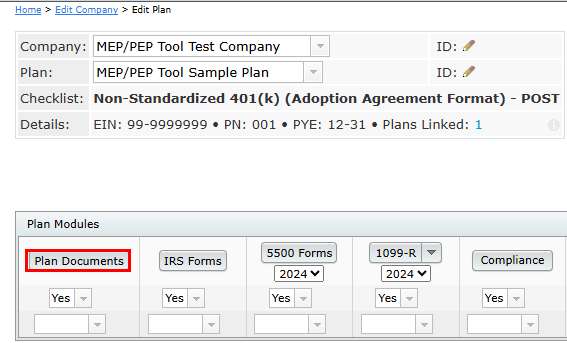
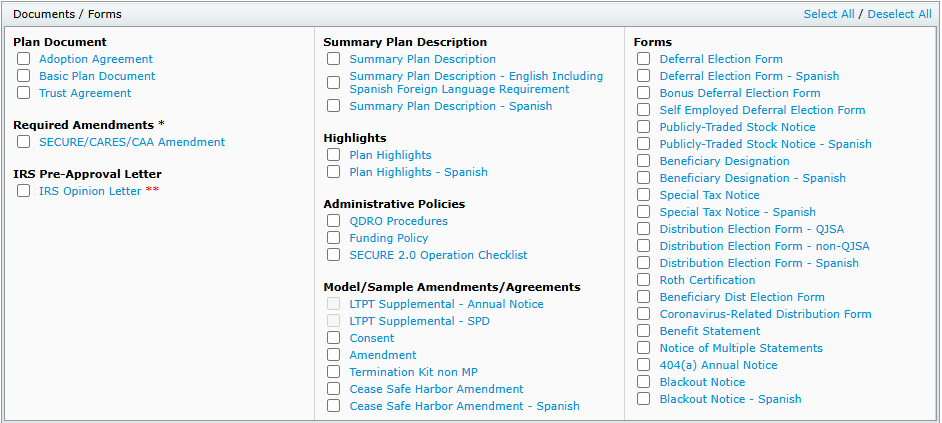
2. Select the Plan Documents and any supporting forms/notices that you normally provide to your Plan Sponsor.
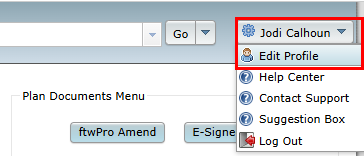
To filter your search on the Home page by Master and/or Adopting Employer plans, click on your name in the upper right corner and select "Edit Profile".
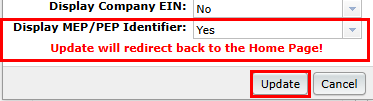
Set "Display MEP/PEP Identifier" to "Yes" and click on the "Update" button.
On the Home page, you can now do an advanced filter by clicking on the "Advanced" button.

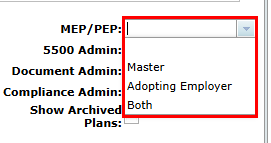
Next to "MEP/PEP" you can choose how to filter your search.