To convert a plan to a different checklist type, click on the "Convert Plan" link located under the Plan Menu on the Edit Plan page.

On the next page, you can select your desired checklist type. Click on "Convert Plan" button.

All checklist questions will be copied to the selected checklist (where possible). You will be provided with a list of incompatible checklist questions if there are any. After completing the conversion, it is recommended that you review the checklist, run the edit checks and update where applicable.
The Clone Plan feature can be used when you would like to add a plan to a company that is identical or similar to an already existing plan on your account. Cloning a plan will copy the checklist type and all checklist answers of the original checklist to a company that you designate.
1. If the plan is to be added to a new company that is not on your account, you will first need to add the company to your account.
2. Go to the Edit Plan page of the plan that you want to clone from.
3. Click on the "Clone Plan" link located under the Plan Menu.

4. From the drop-down next to "Company", select the company that you wish to clone the plan to. Click on the "Clone Plan" button.
Please note: the list will default to the company associated with the plan that is being cloned. Be sure to select from the list the new company that you want to clone the plan to.

The plan you just added will have the cloned plan's name preceded by "Created from". You can re-name the plan name as applicable in Section A. 2a.b, It is recommended to review the Edit Plan checklist to verify the plan's provisions and make any necessary adjustments.

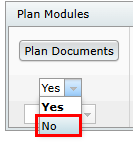
Deleting a plan will permanently remove the plan from the system, as well as all completed forms and filings. If you might need access to the plan again in the future, we recommend you mark the plan as not responsible for. You can mark a plan as not responsible from the Edit Plan page. Under "Plan Modules" select "No". The plan will no longer pull into batch features or reports.
In addition, you can convert the plan to a Misc. checklist from a document checklist. Refer to "Convert Plan" for steps in converting a document checklist.
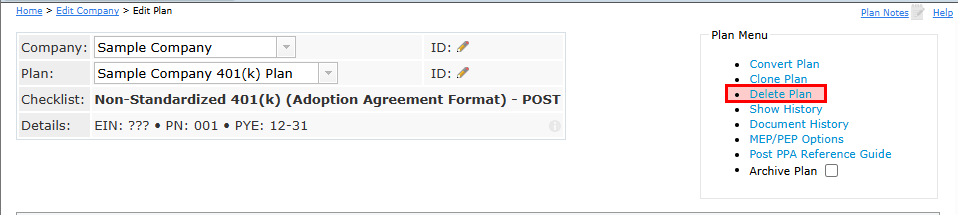
If you have determined that the plan can be deleted (e.g. duplicate plan with no history), click on the "Delete Plan" link under the Plan Menu on the Edit Plan page.
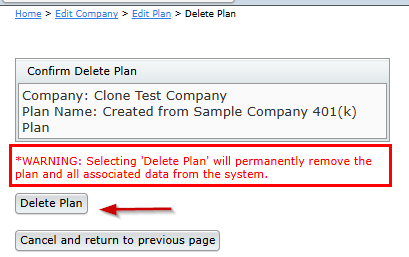
Confirm that you want to delete the plan by clicking on the "Delete Plan" button. Once a plan has been deleted, this transaction cannot be undone.
The Show History page enables users to review modifications made to plans across all modules that you subscribe to. Users with with Designated Administrative permissions can revert changes made to the document checklist from this page. In addition, you can view historical version of the Adoption Agreement or Plan Documents (Individually Designed format), that were generated after October 31, 2025.
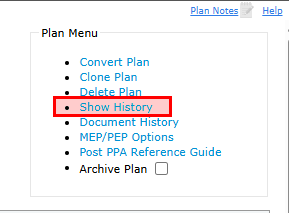
To access the Show History page, click on the "Show History" link located under the "Plan Menu" on the Edit Plan page.
This page shows history of when documents were generated, updates made, etc. by User.
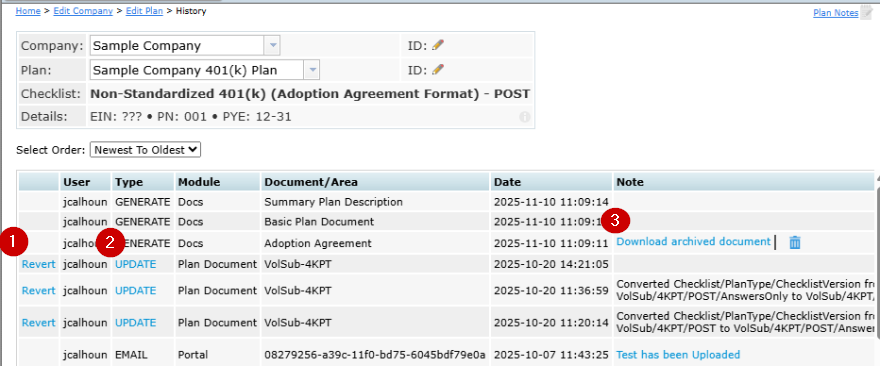
1. Revert : The "Revert" link allows Users with Designated Administrative permissions to revert changes made to the document checklist.
Please Note: Revert will undo all changes made during a log in session. Reverting changes also creates a record in the Show History. Even reverting can be reverted.
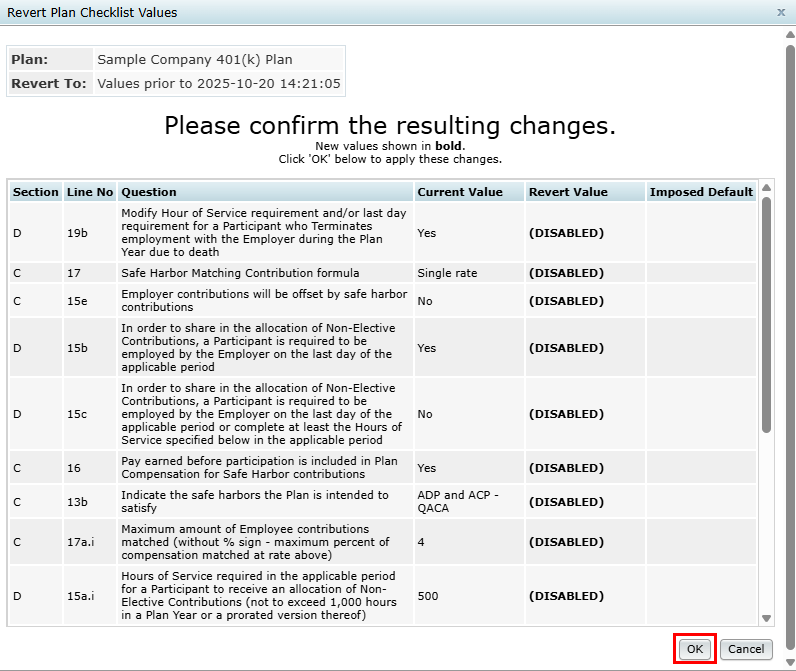
After clicking on the "Revert" link, a pop up window will generate of the Revert Plan Checklist Values providing a summary of all values that will be reverted. Click "Ok" at the bottom to proceed.
A pop-up dialog confirming the changes were successfully made will generate.

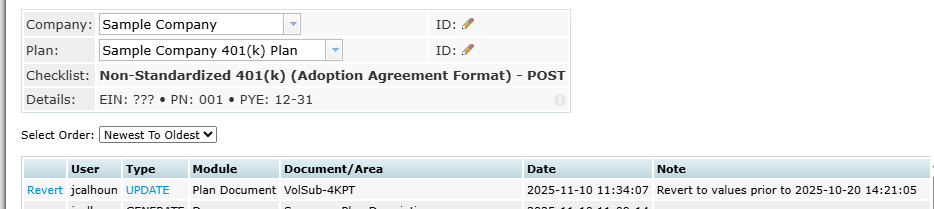
After completing the revert, you will see an entry in the Show History log.
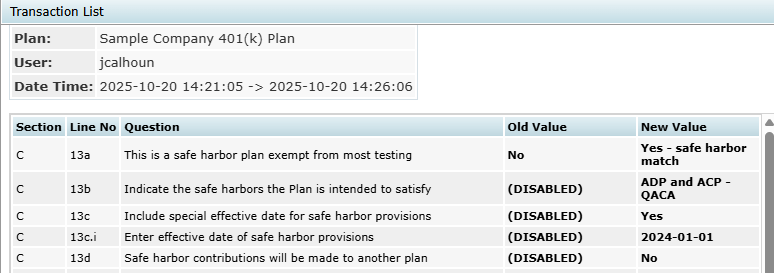
2. Update: The "Update" link will provide a Transaction List of changes made. All changes made in the Plan Document module are logged by User and the Date and Time range of the session when the changes were made. The Old Value is the value prior to the change and the New Value is replacing the Old Value.
3. VersionView: This feature automatically saves generated plan documents as archived PDF files and stores them in the Show History. This feature applies to plan documents generated on or after October, 31, 2025. To access a prior version, click on the "Download archived document" link under the Note column. Users with delete permissions can delete an archived document by clicking on the trash can.
Please Note: Deleting an archived document is permanent and cannot be retrieved or restored.

The Document History page enables users to review modifications made to the document checklist. To access the Document History page, click on the "Document History" link located under the "Plan Menu" on the Edit Plan page.

This page will show only changes made to the document checklist by User, Date/Time, Section, Line Number, and Question. In addition, it will display the Old Value and New Value. To expand the item, click on the "+" next to the User name. You can also download to a CSV.

