Contact Types are used to define permission groupings for portal users. Each Contact Type contains a set of module‑specific permissions that determine what users can view, access, and complete within the portal. Assigning users to a Contact Type helps maintain consistent access across the system and reduces the need to manage permissions individually.
Quick Links:
- Default Contact Type
- Edit Existing Contact Types
- Add New Contact Types
- Delete Existing Contact Types
Accessing Contact Types
To manage Contact Types, the user must be logged in as either the Master Admin User or a Designated Admin.
The Edit Contact Types screen can be accessed in either of the following ways:Wolters Kluwer Logo
Select the Wolters Kluwer Logo > Administrative Tasks > Portal/Workflow > Edit Contact Types
Edit Portal User Screen
From within the Edit Portal User screen, select Edit Contact Types
Note: The screenshots shown below reflect the newest user interface. When accessing Contact Types from the Wolters Kluwer logo, the navigation visuals may appear slightly different; however, the menu options and functionality remain the same.
Default Contact Type (Return to Top)
When the Edit Contact Types screen opens, the *default* Contact Type is selected automatically.
The *default* Contact Type defines the permissions applied when a portal user is added to the software, if a specific Contact Type is not selected at the time the portal user is created.
The modules available on your account will display on the left-hand side of the screen. Selecting each tab will allow you to make edits to the default settings for that specific module.
NOTE:
- Changes made to Contact Types affect future assignments only.
- Existing users are not updated unless the changes are explicitly applied.

View or Select a Contact Type
Use the drop‑down at the top of the window to view or select an existing Contact Type (including default). The existing contact types may be edited or a custom contact type may be created. 
Edit Existing Contact Types (Return to Top)
Editing a Contact Type is used to update permissions for an existing user role. Changes made to a Contact Type affect users who are assigned to that Contact Type going forward. Existing portal user permissions are not updated automatically unless specifically applied. This flexibility allows administrators to adjust access as workflows or business needs change.
Edit an Existing Contact Type
- Select a Contact Type from the drop‑down.
- Open a module tab and adjust permissions.
- Select Save Tab to store changes for that module.

- Repeat for additional modules as needed.
To Apply Changes to Existing Users
- Select the checkbox next to Apply to portal users followed by Save Tab

- Selecting the Save Tab will open a window containing all of the existing users with that Contact Type.
- Select to update all users by selecting the checkbox in the upper left-hand corner
- Or select specific users to update by selecting the checkbox next to their name.
- Users may be selected by either by scrolling through the list or using the filters at the top of the window
- Once selected press Ok and the updates will be applied to the users selected

Add a New Contact Type
Adding a Contact Type allows administrators to create a new permission set that can be assigned to portal users. This is useful when a new role, responsibility, or access level is needed that differs from existing Contact Types. Once created, the Contact Type can be reused for multiple users and helps ensure permissions are applied consistently across subscribed modules.
To Add a Contact Type: (Return to Top)
- Select Add (to the right of the drop‑down list).
- Enter a name for the new Contact Type and select Create New Contact Type.
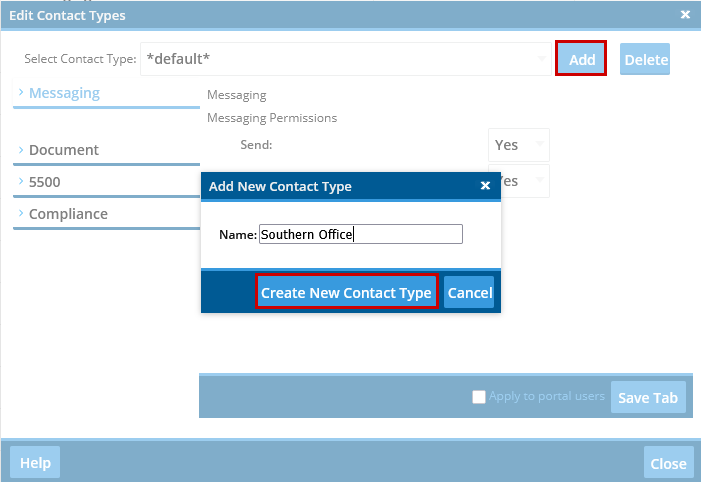
- Once added update the permissions in each applicable module tab.
- Select Save Tab after completing each module’s settings.
- Once saved, the Contact Type becomes available for assignment on the Edit Portal User screen or via upload.
Delete a Contact Type (Return to Top)
Deleting a Contact Type removes an unused or no‑longer‑relevant permission set from the system. Before deleting, it is important to ensure users assigned to the Contact Type have been reassigned to another option. Once deleted, the Contact Type is permanently removed and cannot be restored without manual recreation.
To Delete a Contact Type:
- In the drop‑down, select the Contact Type to be deleted.
- Select Delete (to the right of the drop‑down).
Confirm deletion when prompted.

