Scrub/Eligibility Parameters
Click on the Scrub/Eligibility row to expand and view the parameters here. Within this section are the global eligibility overrides, HCE/Key overrides and limit overrides.

Scrub/Eligibility Results
When the Run button is pressed, the system does a large number of calculations/determinations. Using census data and any supplemental data you provide, plus prior year data and service history (if available), it will attempt to calculate/determine:
- Eligibility
- Entry dates
- Catch-up contributions
- HCE/key determinations
- Edit checks
- Field mapping
If the census scrub runs and a data element needed to do calculations on the system is not on the census grid and not mapped, the system tries to find the data somewhere else. For example:
- If service_eligibilityhours is on the grid, but service_vestinghours is not on the grid and not mapped, the system will populate vesting hours with eligibility hours and will generate a warning to let you know that the vesting hours of service has been defaulted to be the same as eligibility hours of service.
- If prior year compensation is missing from the census or from a supplemental census, the system will use current year compensation for prior year compensation and generate a warning.
The warning lets you know the substitution was done and you should confirm and correct as needed.
Below is an explanation of each of the boxes you may see on the "Run Scrub/Eligibility" pop-up window:
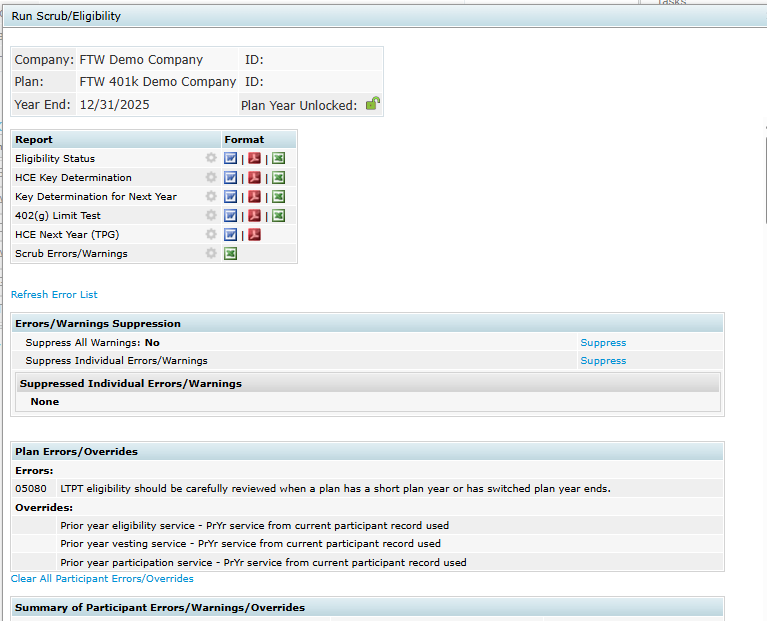
Error/Warnings Suppression
You may suppress all warnings by clicking on the “Suppress” link located to the right of “Suppress all Warnings”. You may suppress errors and/or warnings individually by clicking on the “Suppress” link to the right of “Suppress Individual Errors/Warnings”. This will open a list of each individual error and warning that is available and you can go through and suppress any you do not wish to see. If you would like to reactivate/reapply the error, you can click on "Activate" to have the error listed for the applicable participant(s).
Plan Errors/Overrides
This box shows plan level errors and any applicable overrides set within the Scrub task like overriding HCE and Key determination or 415 limit override.
Summary of Participant Errors/Warnings/Overrides
This box shows a summary of the number of unsuppressed errors and warnings that are applicable for each participant. You can click on the name of a participant to view their specific listing of errors, warnings, and overrides.
Note: Errors and warnings can be reviewed outside of the pop-up window by generating the Scrub Errors/Warnings report.
At the top of this box is a link to “Clear All Participant Errors/Overrides”. This gives you the option to clear the errors and warnings for all participants instead of suppressing the warnings. We would strongly encourage suppressing errors instead so that you can still review them for troubleshooting in the future.
Errors listed for each Participant
Each participant is shown in detail. If a default answer is used to complete a field, the default will be shown. The "Type" column will indicate whether it is an Error ("E"), Warning ("W") or Participant Level Override ("O").
Scrub/Eligibility Reports
Back at the Tasks screen, the "Reports" button on the Scrub/Eligibility task allows you to print or save the following reports in either Microsoft Word, PDF, or Excel:
- Eligibility Status
- HCE/KEY Determination
- Key Determination for Next Year
- 402(g) Limit Test
- Note: the Scrub/Eligibility task will show as passing (green check mark) even if the 402(g) Limit is exceeded
- For Fiscal Year plans, the *ftw Catch Up and Excess Report Fiscal report should be used instead of the 402(g) Limit Test Report. The 402(g) Limit Test Report is for calendar plans.
- HCE Next Year (TPG) - Word/PDF only
- This report is ONLY for plans using Top Paid Group for HCE determination
- Scrub Errors/Warnings - Excel only
As is the case for all the default reports on the system, if there is information you would like to see that is not in one of the predefined reports for the data census scrub, go to the Other Import/Export/Report Menu and review some of the more detailed report grids there.
