Multi-Factor Authentication (MFA) FAQs
- Q1: Is the MFA a requirement?
- Q2: I do not see Account Profile under my login when I click on the Wolters Kluwer Logo > Administrative Tasks.
- Q3: Can we only add this for only our firm's users, or do Portal Users have to have this feature as well?
- Q4: Who is considered a "Standard User"? Who is considered a "Portal User"?
- Q5: Is it possible to request only specific Users/ Portal Users be required to use the MFA, or is it an "all on" or "all off" feature?
- Q6: Will our clients that use single sign on via PensionPro be affected by the MFA?
- Q7: Many of our Portal Users and FTW Users only have emails in their profiles, no cell phone numbers. Would that be a problem for MFA?
- Q8: Where are the phone numbers and email addresses for this purpose stored? Is this information that we can see, or is it stored internally?
- Q9: What if a user is not receiving a PIN to their cell phone or e-mail? How do we get him/her into the portal?
- Q10: What will our Clients see when they log in for the first time?
- Q11: Is there an authenticator app option available for MFA as the Primary Method?
- Q12: What will Users/Clients see when they log in for the first time when the Primary Method is Authenticator App?
- Q13: What happens if I can’t access my authenticator app and don’t have a backup method set up?
Note: While users may only use two factors during login, the system supports multiple authentication methods. For consistency, this feature is referred to as Multi‑Factor Authentication (MFA).
Q1: Is the MFA a requirement? Top
No. Enabling MFA is an optional feature for all user types.
Q2: I do not see Account Profile under my login when I click on the Wolters Kluwer Logo > Administrative Tasks. Top
Only the Master User on the account can access Account Profile and configure Multi‑Factor Authentication settings. If you do not see this option, please contact your plan administrator for assistance.
Q3: Can we only add this for only our firm's users, or do Portal Users have to have this feature as well? Top
You can choose how MFA is applied. It can be enabled for:
- Standard Users only
- Portal Users only
- DTS Participant Portal Users only
- Any combination of the above

Q4: Who is considered a "Standard User"? Who is considered a "Portal User"? Top
- Standard User: A member of your firm who logs directly into the ftwilliam.com software.
- Portal User: Your client who accesses the Portal to sign documents, e-file 5500s, upload files, etc.
- DTS Participant Portal User: A plan participant who logs into the DTS Participant Portal to view plan information or complete participant-related tasks.
Q5: Is it possible to request only specific Users/ Portal Users be required to use the MFA, or is it an "all on" or "all off" feature? Top
Currently, MFA is an all-or-nothing setting. You cannot enable it for individual users. We are exploring options for more granular control in the future, but there is no timeline yet.
Q6: Will our clients that use single sign-on via PensionPro be affected by the MFA? Top
No. MFA does not impact clients using PensionPro single sign-on. It only applies to those logging directly into the Portal.
Q7: Many of our Portal Users and FTW Users only have emails in their profiles, no cell phone numbers. Would that be a problem for MFA? Top
No problem. Users can verify using email if email backup is enabled on their account. Phone numbers are optional unless SMS is selected as the primary verification method. We strongly recommend all users have a valid email address on file.
Q8: Where are the phone numbers and email addresses for this purpose stored?
Is this information that we can see, or is it stored internally somehow? Top
Yes, you can view this information:
- By Standard Users:
- Users can view their own details from within the Edit Profile link (click your name in the upper-right corner).
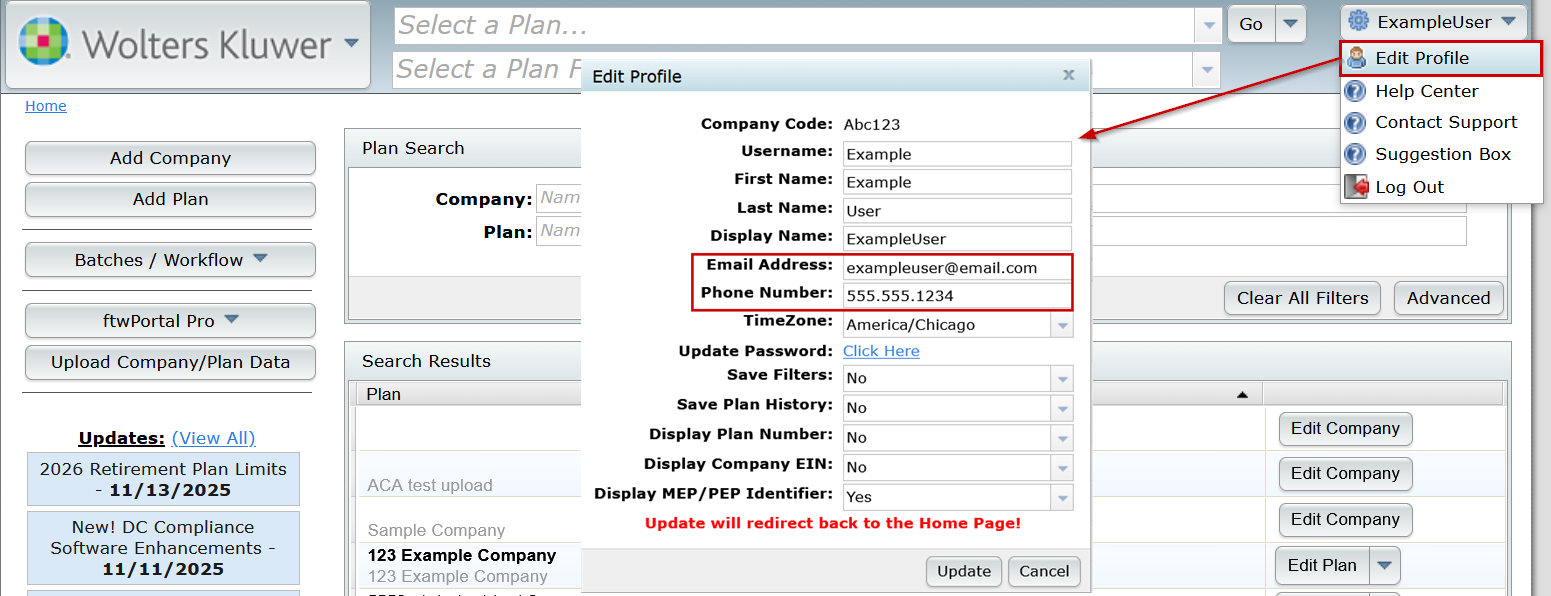
- By Admins (Designated Admins or the Master User)
- Users with Administrative privileges can view all user details under WK Logo > Administrative Tasks > Users.
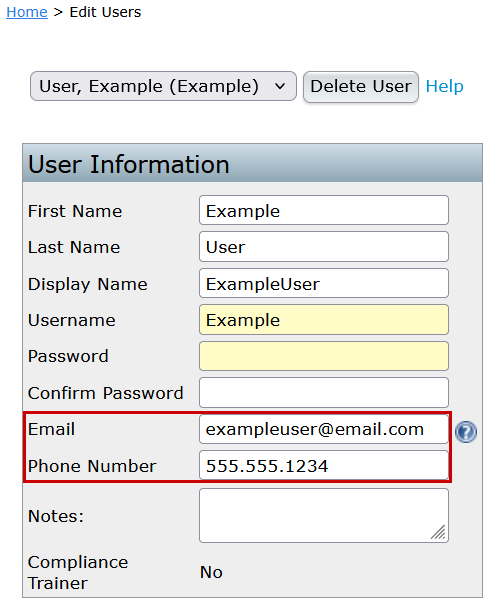
- To View Portal Users:
- Details are stored in the Edit Portal User Form under the User Info tab.
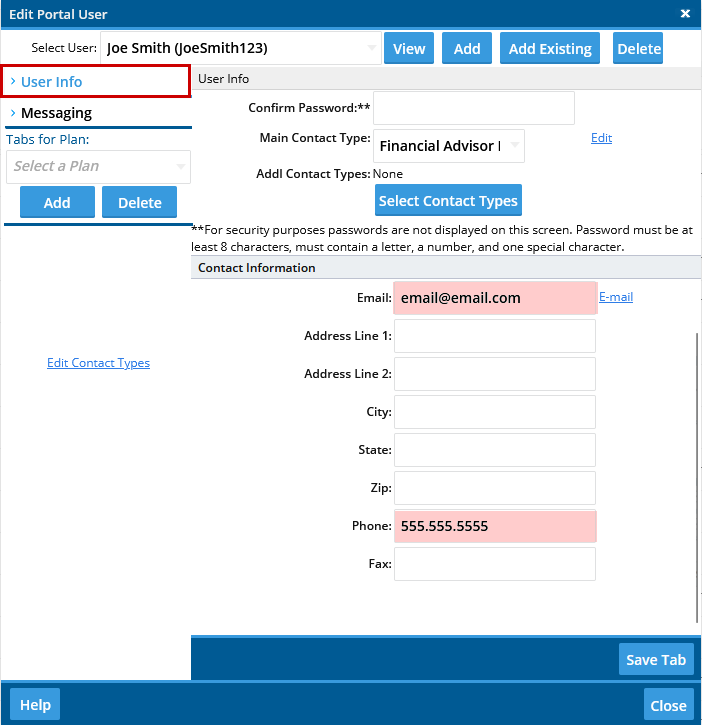
- Details are stored in the Edit Portal User Form under the User Info tab.
Q9: What if a user is not receiving a verification code to their cell phone or e‑mail? How do we get them into the portal? Top
Try the following steps:
- Confirm that an email address and/or phone number is listed in the user’s profile
- If one delivery method fails, use the other (for example, email instead of phone)
- Ensure contact information is up to date (see Q8)
If the user cannot receive a verification code and does not have a backup method configured, they must contact their plan administrator to regain access.
Q10: What will our Clients see when they log in for the first time when the Primary Method is SMS or Email? Top
When MFA is enabled, the first login looks like this:
- Log in and confirm details
Clients enter their username and password, then immediately verify their email and/or phone number on the next screen.

- Receive and enter the security code
A one-time code is sent by text or email.- The code is valid for 15 minutes.
- After entering the code, they proceed as normal.

Email details:
- Standard Users and 5500-only Portal Users: Emails come from donotreply@ftwilliam.com.
- Full Portal subscribers: Emails use the settings configured under Global Email Settings > Notifications.
Q11: Is there an authenticator app option available for MFA as the Primary Method? Top
Yes. When MFA is enabled, the Master User can configure the authenticator app in the Account Profile as the Primary Method for the entire company. This setting applies to all users included in the MFA configuration.

Q12: What will Users/Clients see when they log in for the first time when the Primary Method is Authenticator App? Top
When MFA is enabled and the Primary Method is Authenticator App, the first login looks like this:
Log in and begin verification
Users/Clients enter their username and password, then are prompted to verify their cell phone and/or email

Once 'OK' has been clicked, then they are prompted to set up and verify using the authenticator app on the next screen.

Scan the QR code
A QR code is displayed on the screen.
Clients open their authenticator app and scan the QR code to add the account.
Enter the security code
Once the account is added, the authenticator app generates a time-based security code.
The code refreshes automatically at regular intervals.
After entering the code, users/clients proceed as normal.
Q13: What happens if I can’t access my authenticator app and don’t have a backup method set up? Top
If you cannot access your authenticator app and do not have email backup enabled, you will not be able to log in. In this situation, please contact your plan administrator for assistance.
To help prevent this, all users are prompted to verify their contact information upon first login after MFA is enabled and should ensure an email address is on file.
