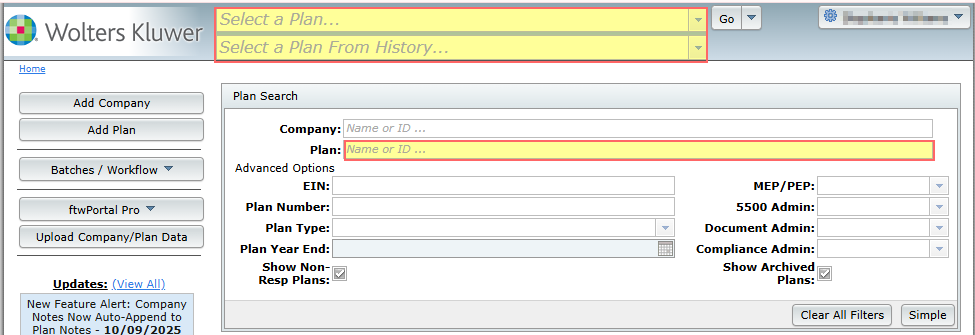
Rather than transferring data from one company code to another, users are able to quickly import available data from EFAST2 via the 55Autofill feature within the 5500 Module of any plan. There are two options when using the 55Autofill feature.
Option 1: Individual Plan Import
Step 1: Navigate to the 5500 Module
- Please note that each year imports individually. Users will need to navigate to the specific filing year they wish to import.
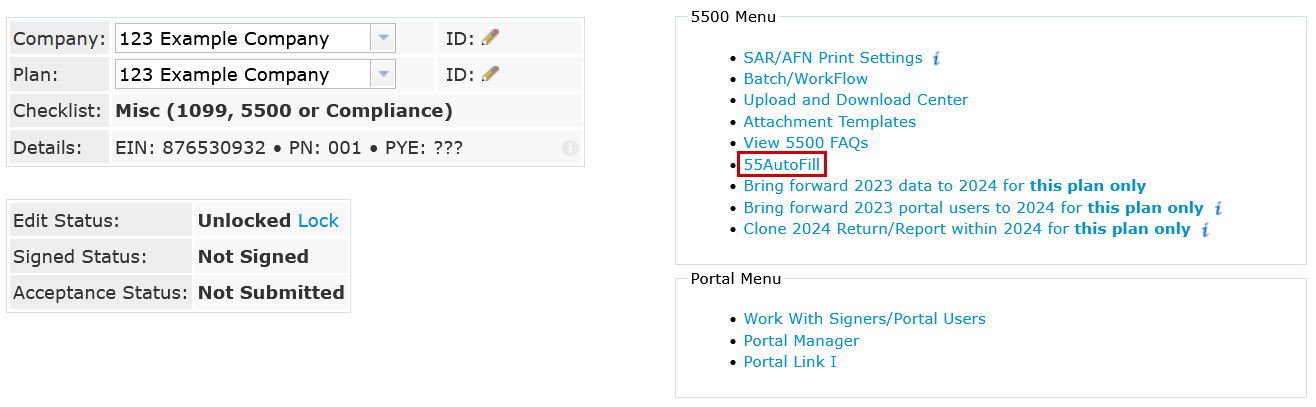
Step 2: Select the 55Autofill Link
- Once in the filing year, select the 55Autofill link at the top-right of the screen from within the 5500 Menu box.
- This imports Department of Labor (DOL) data from prior Form 5500 filings using the plan’s EIN and Plan Number.
- 55Autofill will not import:
- 5500-EZ filings
- Any filing that received a status other than Accepted
- Filings older than 4 years. (Example in 2025 only forms 2021-2024 are available.)
- 55Autofill will not import:
Important: Importing DOL data will overwrite any existing 5500 data for that year in ftwilliam.com.
Please see the below video of the individual 55Autofill process.
Option 2: Batch 55Autofill
Batch 55Autofill enables the automatic import of Department of Labor (DOL) data for multiple plans at once. This process can be used to populate all available forms and schedules for when adding new plans to the software or to add 5500s to existing plans already set up in ftwilliam.com.Add New Plans:
This option will create new plan listings within the software for each EIN provided and import all available Form 5500 data from the Department of Labor (DOL).
- Submit a list of EINs to support@ftwilliam.com to autofill all available forms and schedules for each EIN.
- Support will connect you with our conversion specialist to provide you with a timeline for completion.
Update Existing Plans:
If plans are already configured in ftwilliam.com and need additional 5500s, users may request batch autofill for those plans.
- Submit a list of EINs and Plan Numbers to support@ftwilliam.com to autofill all available forms and schedules for each plan specified.
- Support will connect you with our conversion specialist to provide you with a timeline for completion.
Company A can download an export ZIP file from the compliance module for each plan. However, these files are specific to the original company code and plan, and cannot be directly imported into your system.To complete the import, our development team can assist for a fee. We would request a quote from them to estimate the time required.
Optional Step: Manual DC Setup (Company B)If your team prefers to handle DC compliance independently (“from scratch”), you would:
- Complete Steps 1 and 2.
- Gather census data from Company A.
- Manually load the data into each plan.
Below are the steps to assist you in transferring plan document checklists to or from another service provider (i.e. prior TPA) that also uses the FTW document software.
Please note, the user must have Admin level rights on their account to both download the report and upload the files.
FTW Account that currently holds the plan(s):
- Download the report called “Document Provisions by Checklist”. This report is in the Wolters Kluwer drop down menu under Reports.
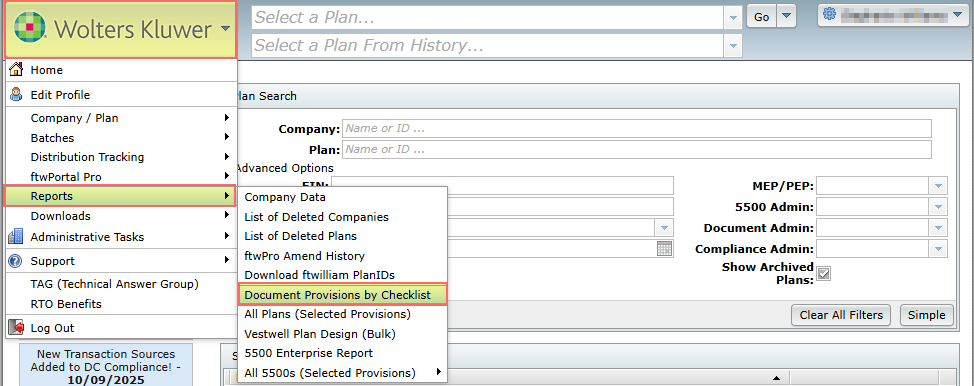
2. This report will include all plans that are on the selected checklist. Plans that will not be transferred should be deleted from this file. Save the file as a CSV file to your computer.
3. Former service provider will then send the saved file to the new service provider to upload to their account.
FTW Account that will be taking over the plan(s):
- Upon receipt of the CSV spreadsheet from the prior service provider, the new service provider will upload the plan(s) via the Upload/Company Plan Data feature. From the Wolters Kluwer menu, select Company/Plan, followed by Upload Company/Plan Data.
NOTE: Do not make any changes to the file.
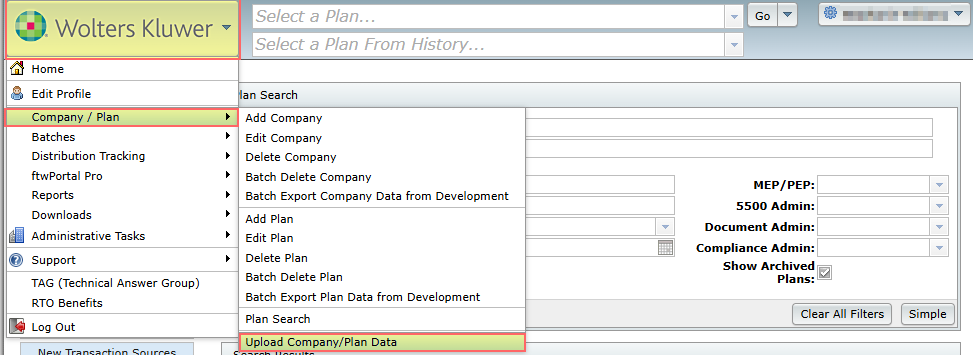
2. On the next page, click on Add/Modify Company and Plan Data.
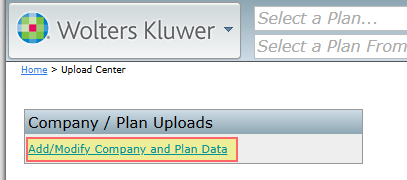
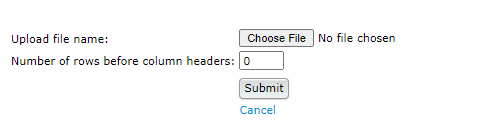
3. At the bottom of the page, click on the “Choose File” button.
4. Select the CSV file that you saved to your computer.
5. Leave the number of rows as 0.
6. Click on the “Submit” button to upload the plans to your account.
Once the file has uploaded, you will find that plan via a Plan Search.